
How to use Market Snapshot on a monitor
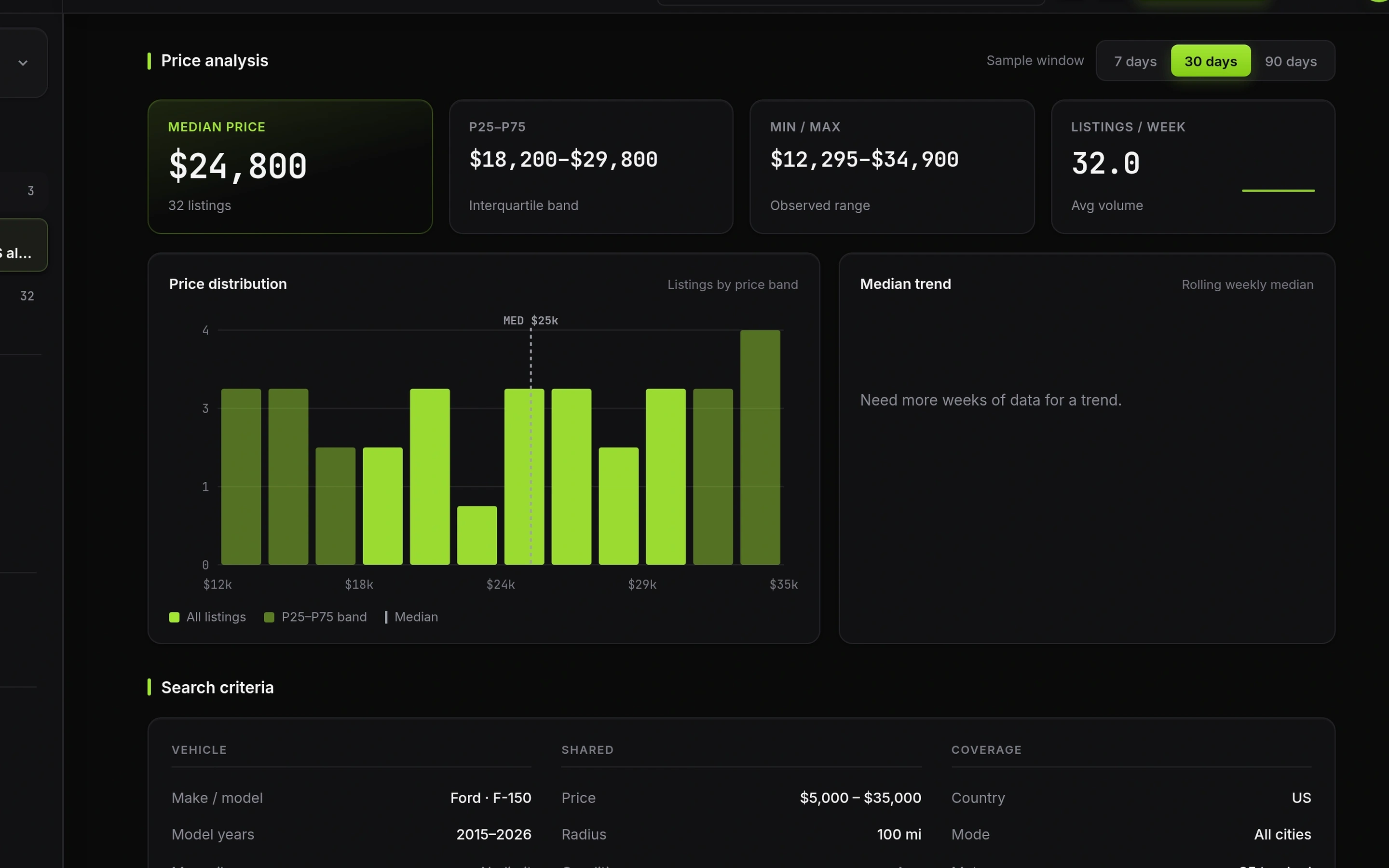
Open a monitor to see Market Snapshot: a live Marketplace price picture for that buy box. Use median, the interquartile band, observed range, and weekly volume before you spend time on a listing.
Snapshot answers "what does this market look like?" Match triage answers "should I message this seller now?"
Open Snapshot from a monitor
From Monitors or the dashboard, open the monitor. The page title is Market Snapshot. Facet chips show identity, coverage, and the sample window.
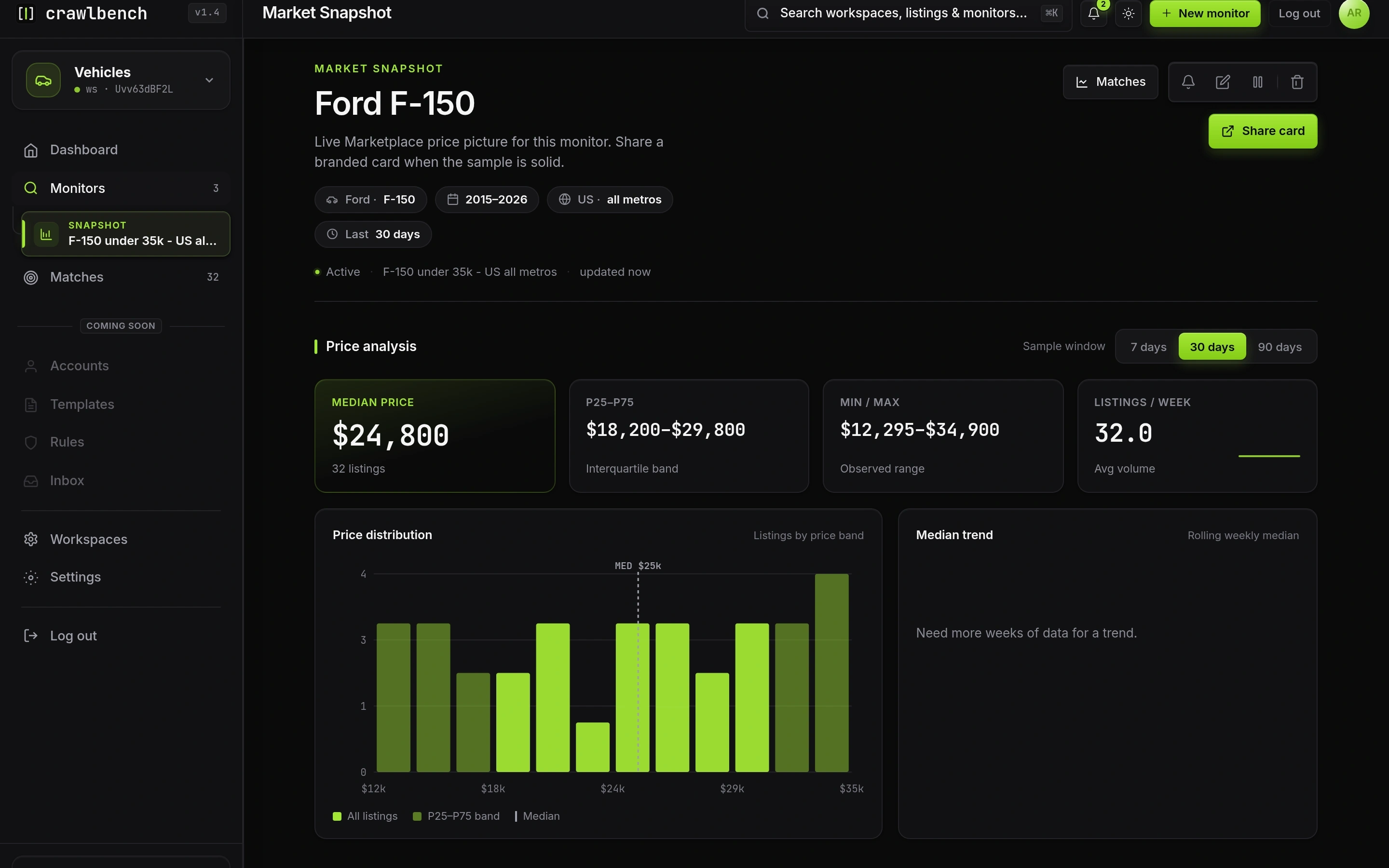
Starter plans do not include Snapshot. Pro, Scale, and an active Day Pass unlock windows (Day Pass tops out at 7 days).
Pick a sample window
Use 7 days when you care about the last few cycles. Use 30 days for a steadier desk read. Use 90 days when you want a longer band and your plan allows it.
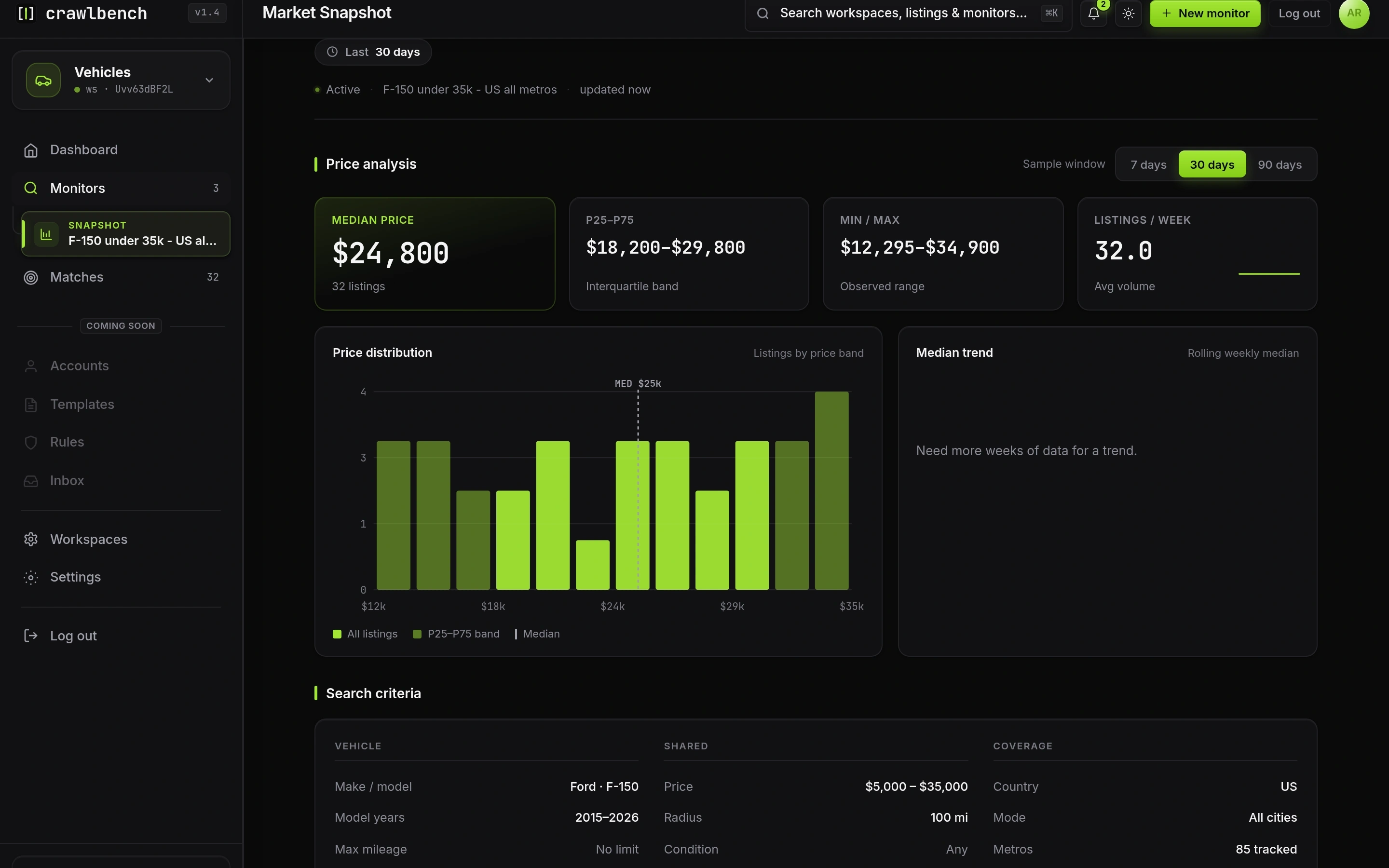
Short windows move with noise. Long windows hide a sudden price shift. Switch windows when a number feels too good to trust.
Read the price analysis
Median price is the center of the priced sample. P25–P75 is the band where half the listings sit. Min / max is the observed range, including outliers. Listings / week is average volume in the window.
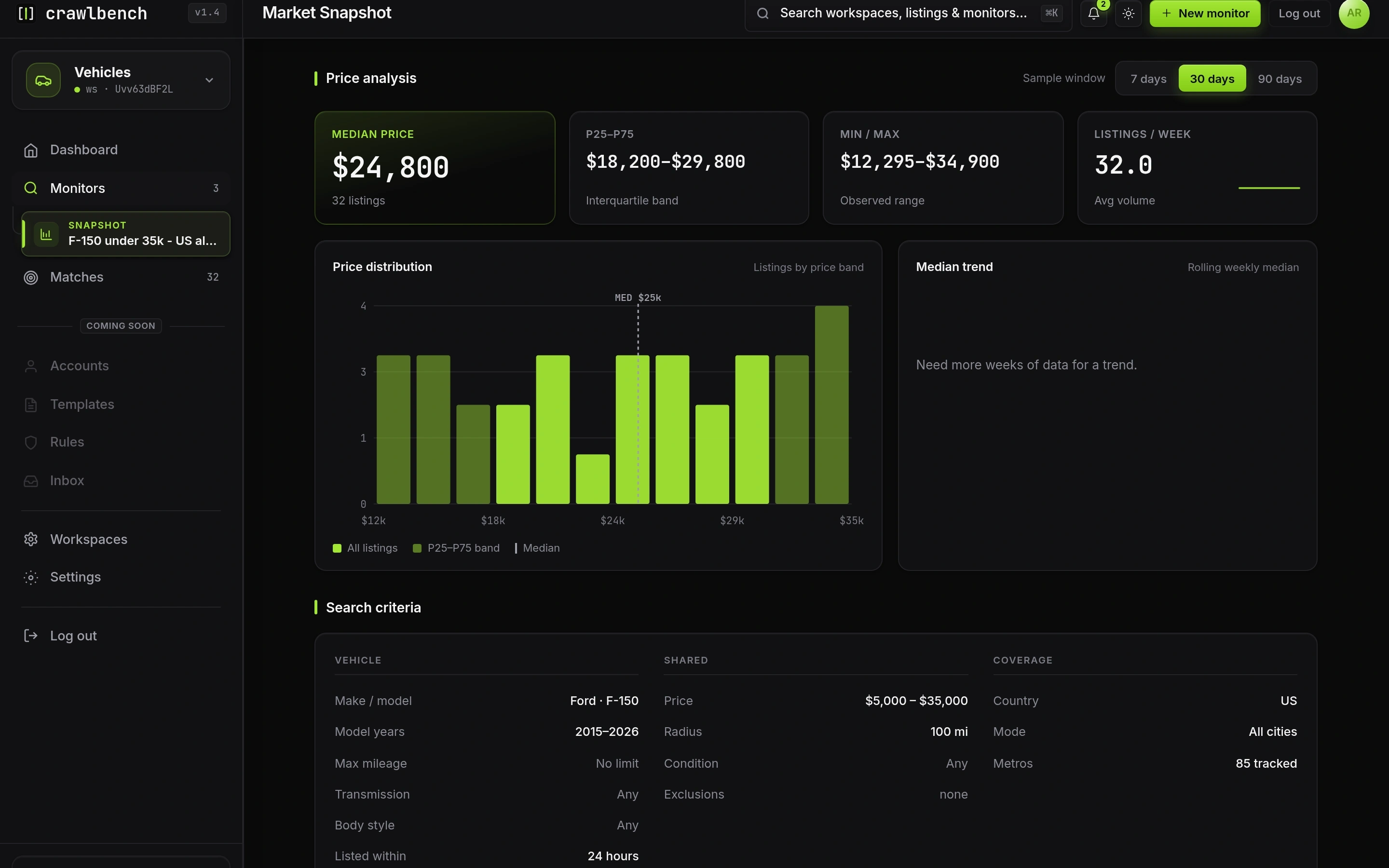
Low sample means the chart is thin. Do not treat a handful of listings as a national market. Share card unlocks when the sample is solid enough for a branded export.
How to use Snapshot in a deal
- Check whether the ask sits below the median or inside the P25 band
- Confirm volume is high enough that the band is not one seller's typo
- Open Matches only for rows you would actually drive to
- Message on Facebook yourself. Snapshot does not contact sellers.