
Guides
How to set email, Slack, and Discord alert preferences
Turn alert channels on or off, and connect Slack and Discord.
Guides
Link the Crawlbench Telegram bot on Alerts and get new listings in one chat, while you message sellers yourself.
Connect Telegram from Alerts: tap Connect Telegram, open the bot and confirm the link. New listings from your searches that are on then arrive in that chat. The bot is one chat for your account, and you still message sellers on Facebook yourself.
Email suits a quieter inbox. Telegram puts new listings in a chat on your phone, so you can react while a listing is still new. Both tell you after a listing passes your search, and each channel is on or off on Alerts.
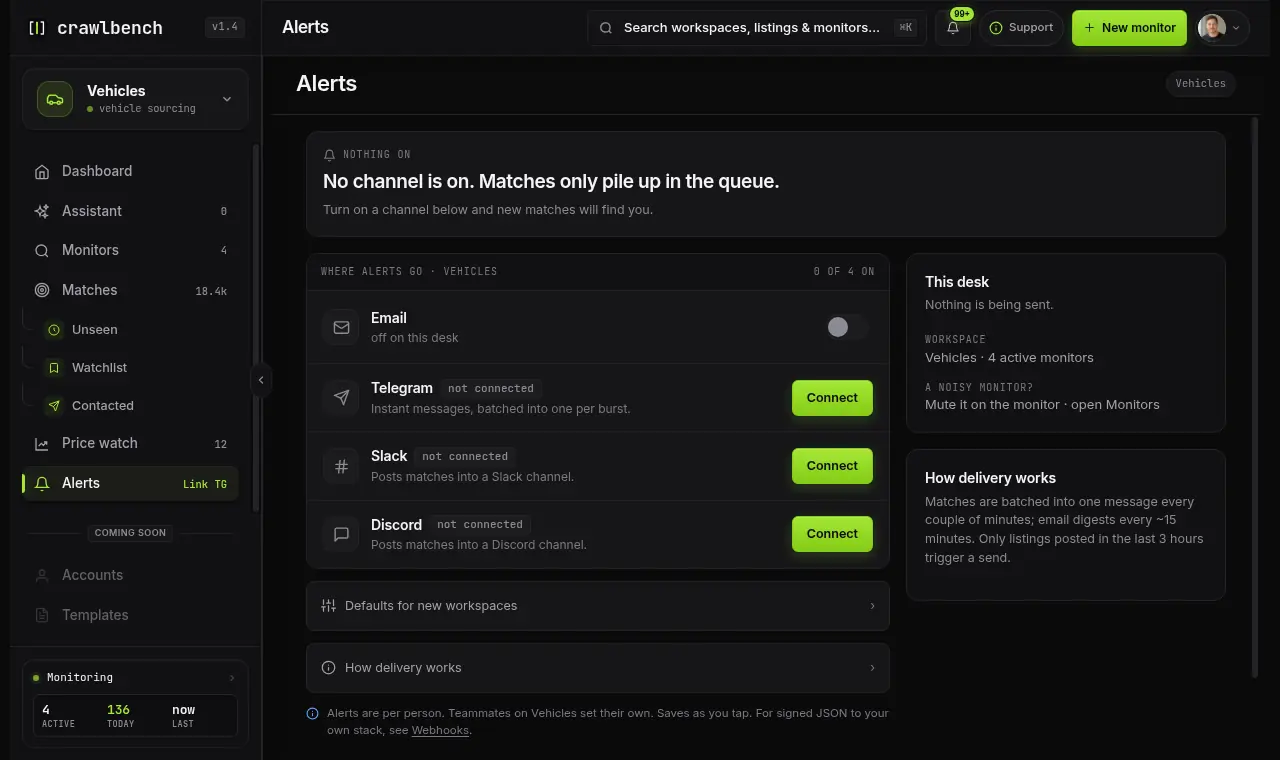
Sign in, open Alerts, and tap Connect Telegram. Telegram links to you, not to a team: each Crawlbench user links one chat. The same Telegram chat can link more than one Crawlbench account (for example a personal login and a demo login).
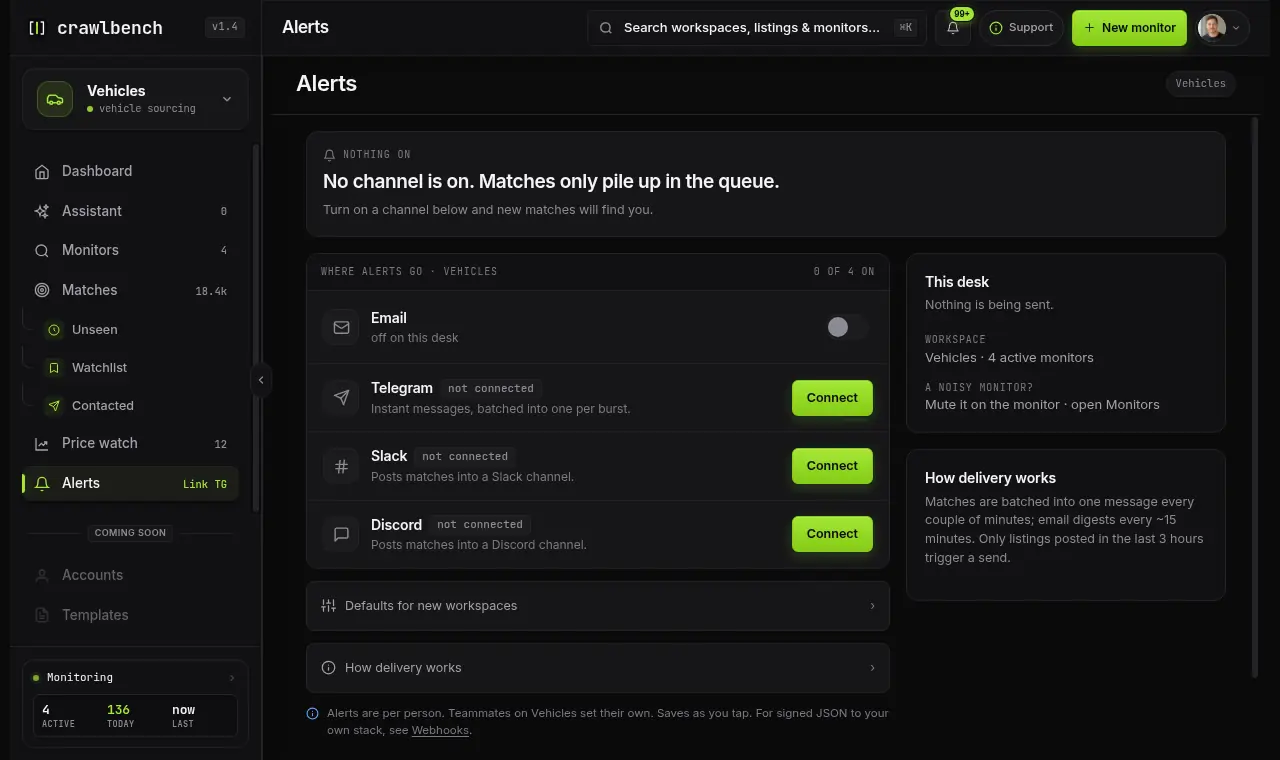
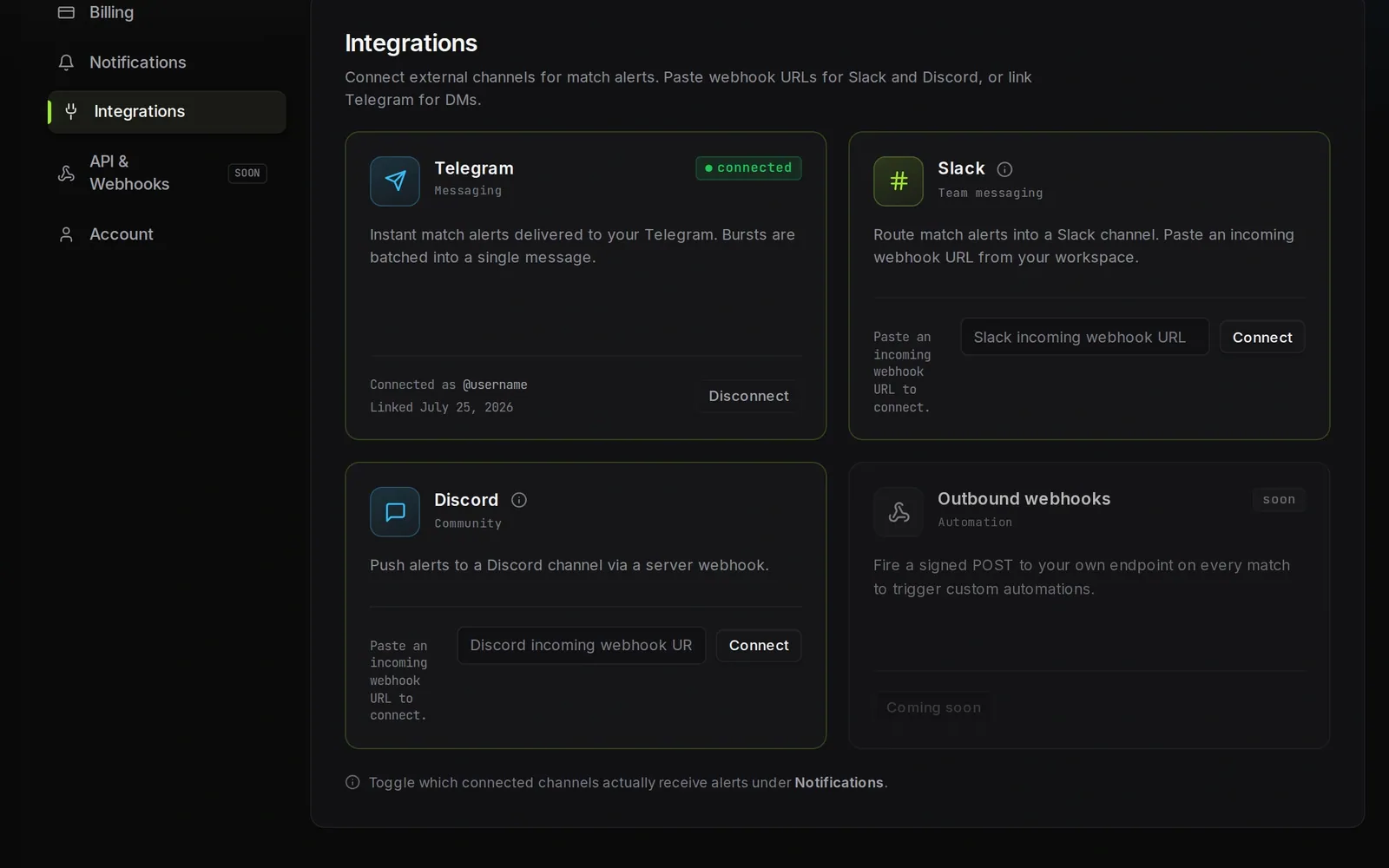
Tap Connect Telegram on Alerts. Crawlbench shows a short connect code and an Open Telegram button. Open Telegram to link in one tap, or in the bot send /connect and paste the code. Confirm the chat connects, then return to Crawlbench. A successful link shows Telegram as connected with your @username.
If the link fails, get a fresh code from Alerts and try again. Codes expire after about 15 minutes.
In the bot chat you can also send /status to list linked Crawlbench accounts and /unlink to disconnect one or all without signing in to the web app. When several accounts share a chat, each message includes the account email so you can tell them apart.
Back on Alerts, Telegram shows as connected and on. To take a break from Telegram, turn it off there: the other channels keep working, and nothing else about your searches changes.
Expect new listings from your searches that are on, best deals first, in one message for each check: the price, how it compares with similar listings, where it is, and a link back to the listing. Link previews stay off so the chat stays readable.
Automate finding and filtering. Keep the first Facebook message manual. If a tool offers auto-DM, that is a different product risk, not this guide.
Guides
Turn alert channels on or off, and connect Slack and Discord.
Guides
Open a search's market prices (year ladder, usual price, range, cities) before you chase a listing. These are asking prices, not sold prices.
Guides
Choose one city, your own list of cities, or all cities, and spend city slots on places you will actually review.

Crawlbench compares each new listing with similar ones nearby and alerts you when a good one appears. Your first search goes live at signup.
Free for 24 hours. No credit card.