
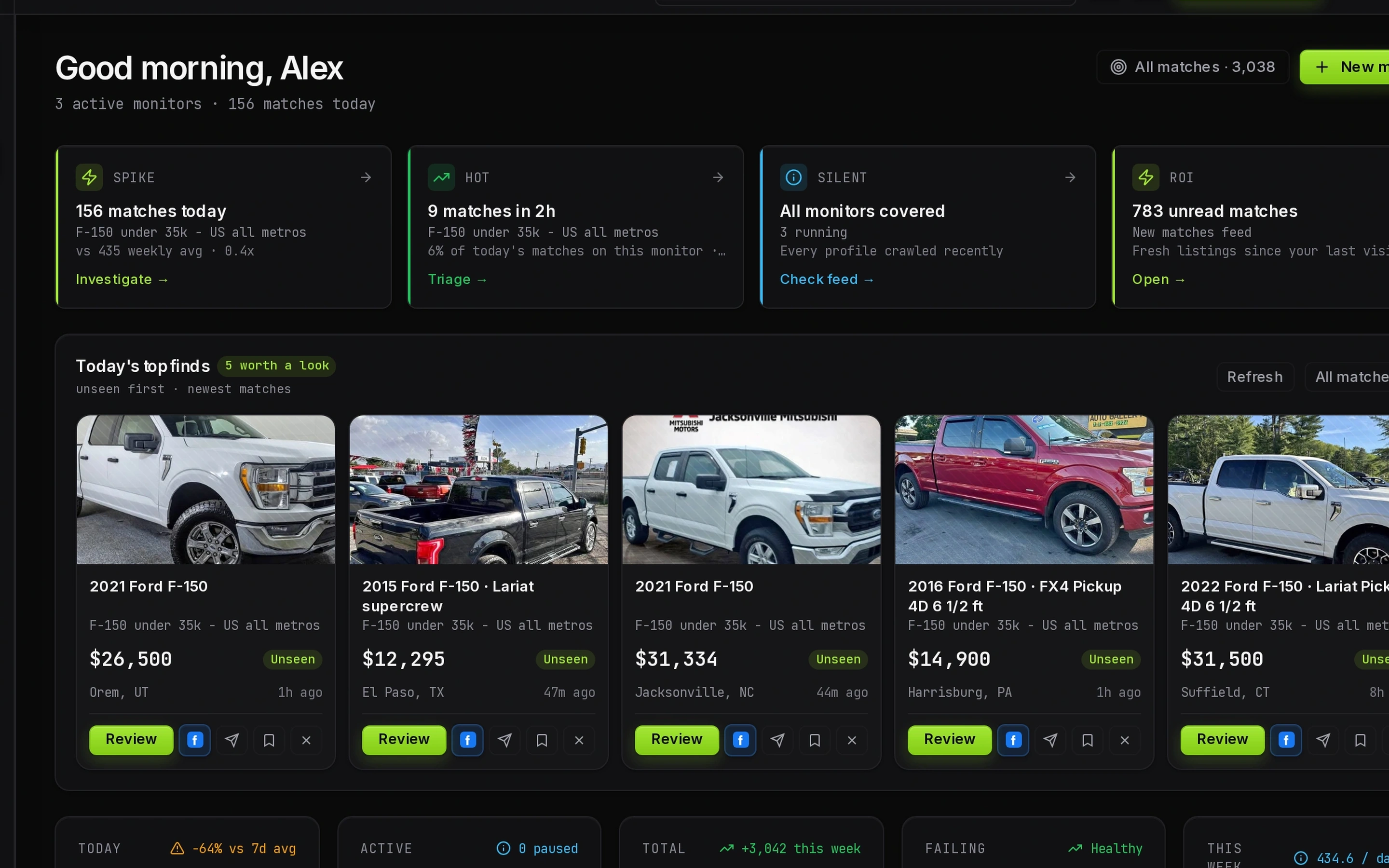
How to read the Crawlbench dashboard
The Crawlbench dashboard answers one question: are my monitors catching Marketplace inventory on schedule? Scan coverage status, then match volume, then open the monitor that needs triage.
Ignore infrastructure labels. Customer views talk about coverage and catching up, not timeouts or rate limits.
Open the dashboard after login
After sign-in, Dashboard is the home desk. Each card is a monitor with coverage, recent matches, and a path into the queue.
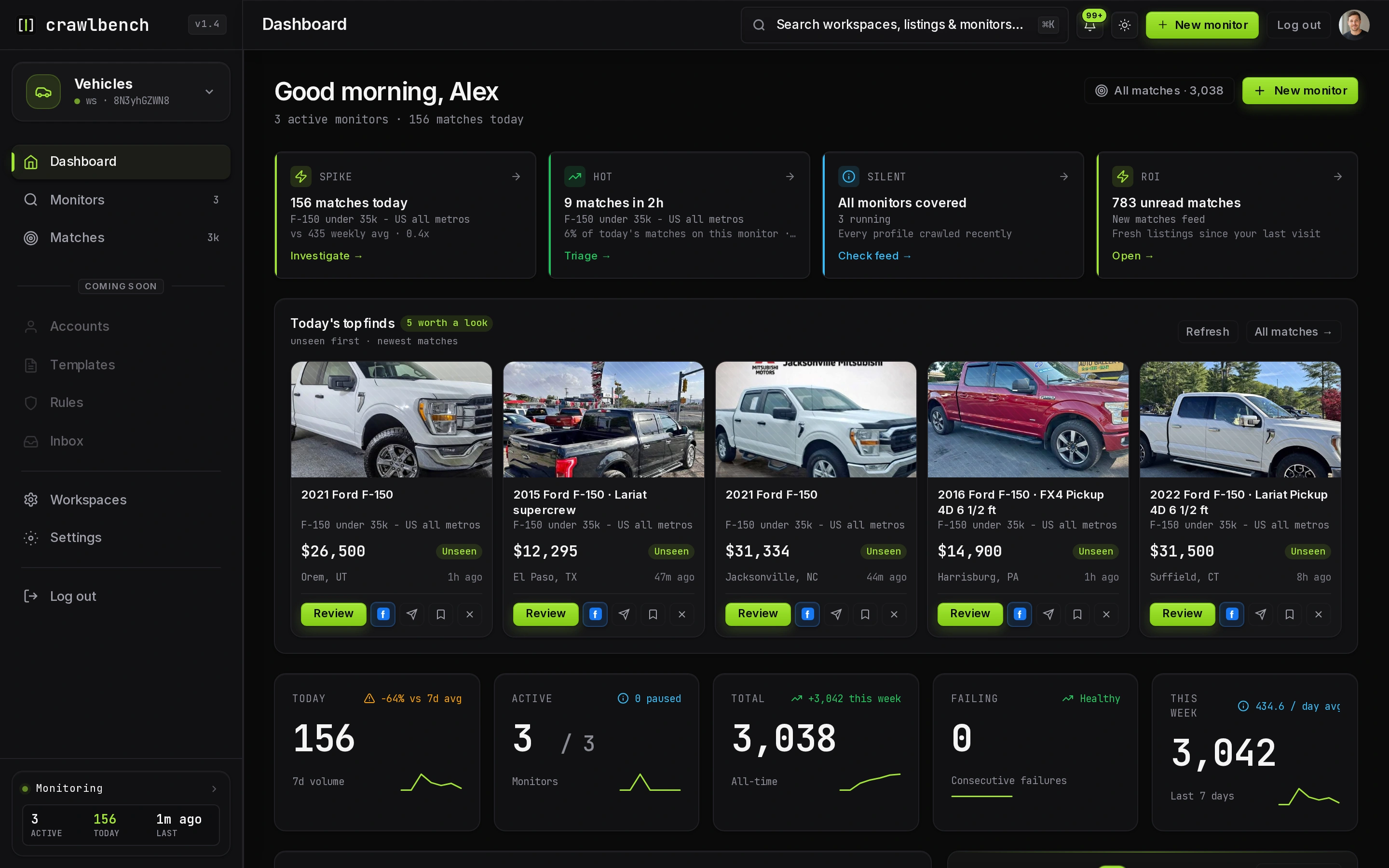
Coverage status means "am I missing scans?"
Coverage compares recent successful check waves to your plan's scan interval. Healthy means scheduled checks are landing. Catching up means the platform is behind and you should not panic-edit filters.
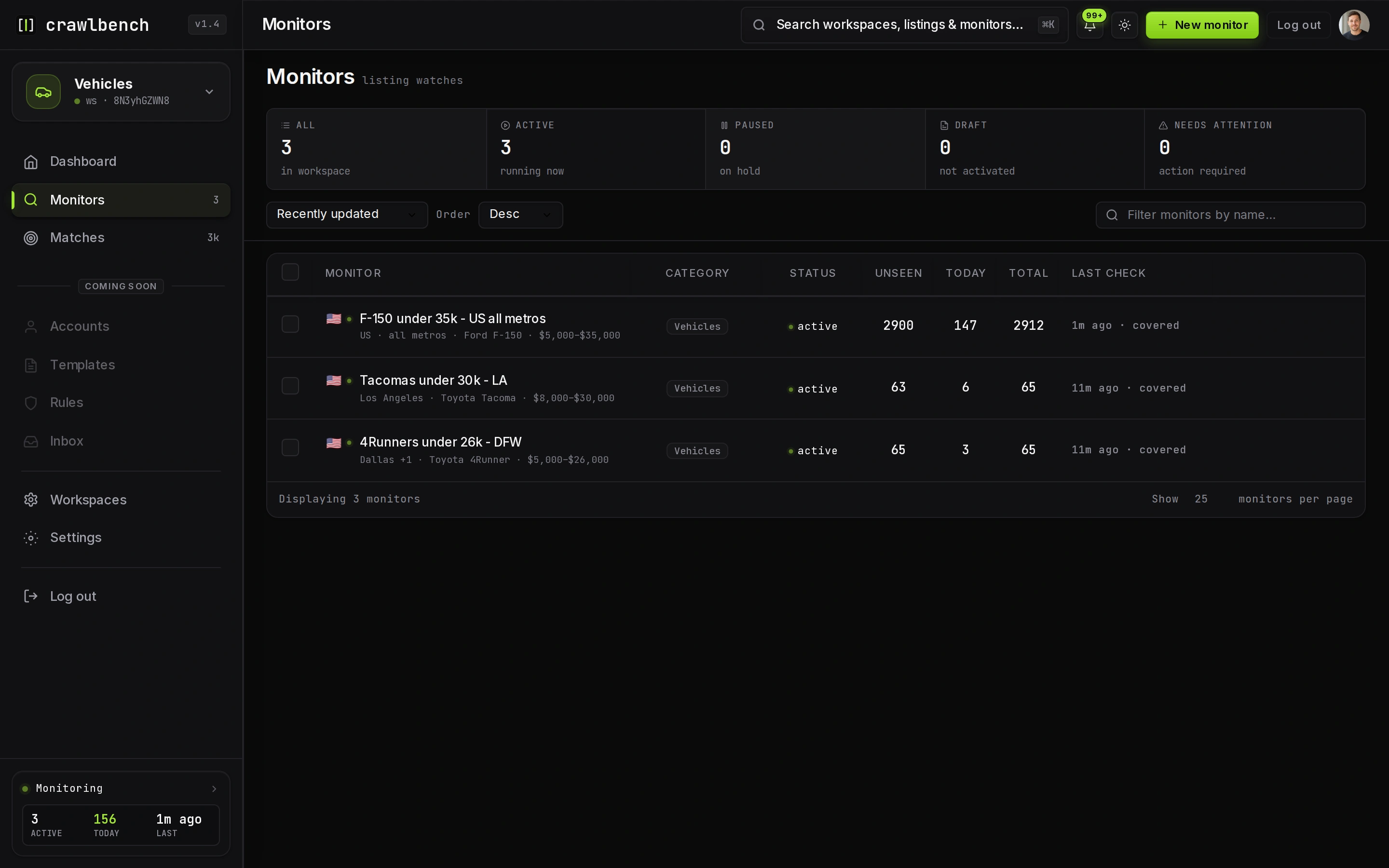
If coverage stays unhealthy while filters are unchanged, check plan fetch caps and city load before you rewrite the buy box.
Trend is match volume, not a health alarm
The short trend on a card is about how many matches you saw recently. Flat or down can mean a quiet market. It is not a red failure state by itself.
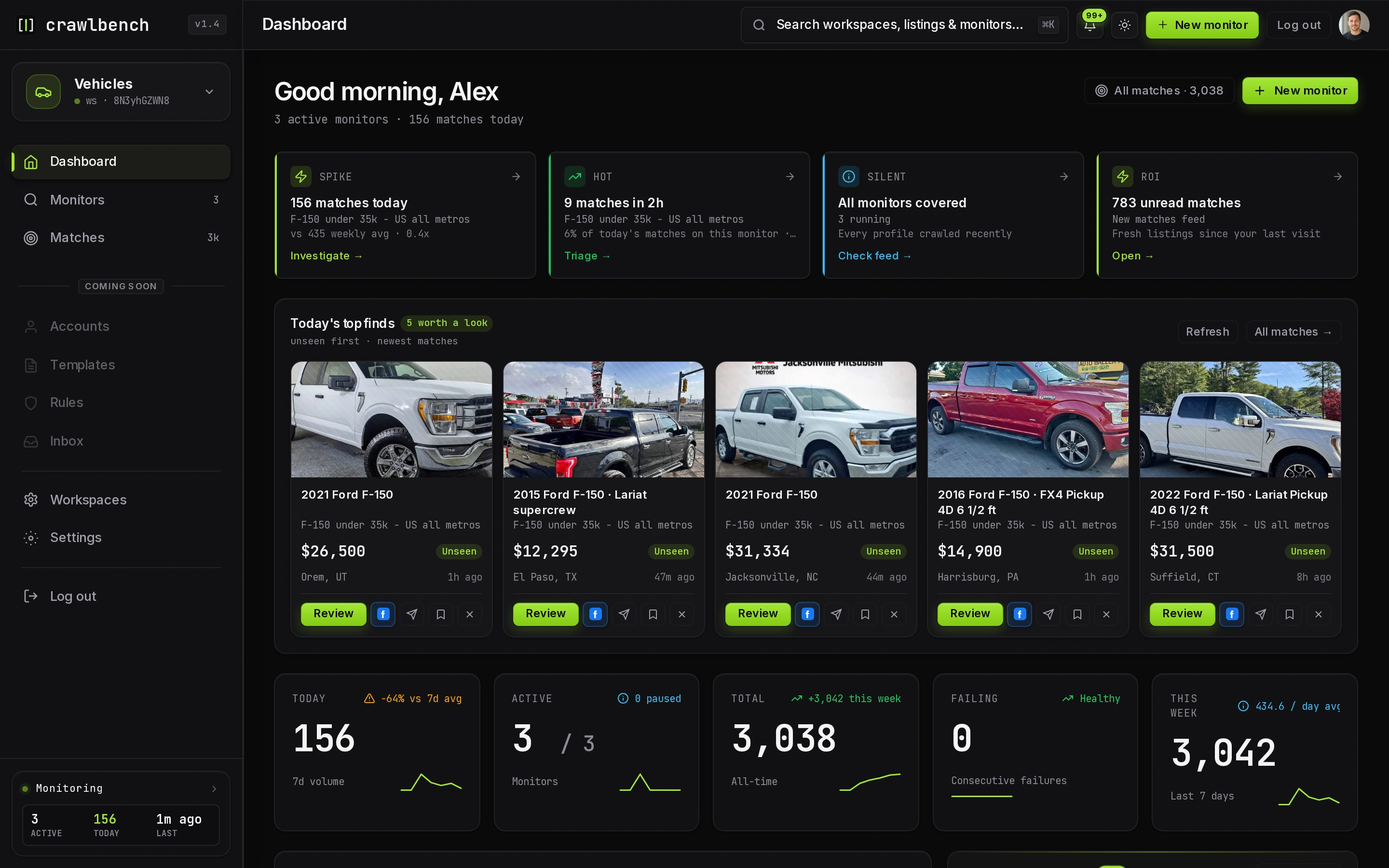
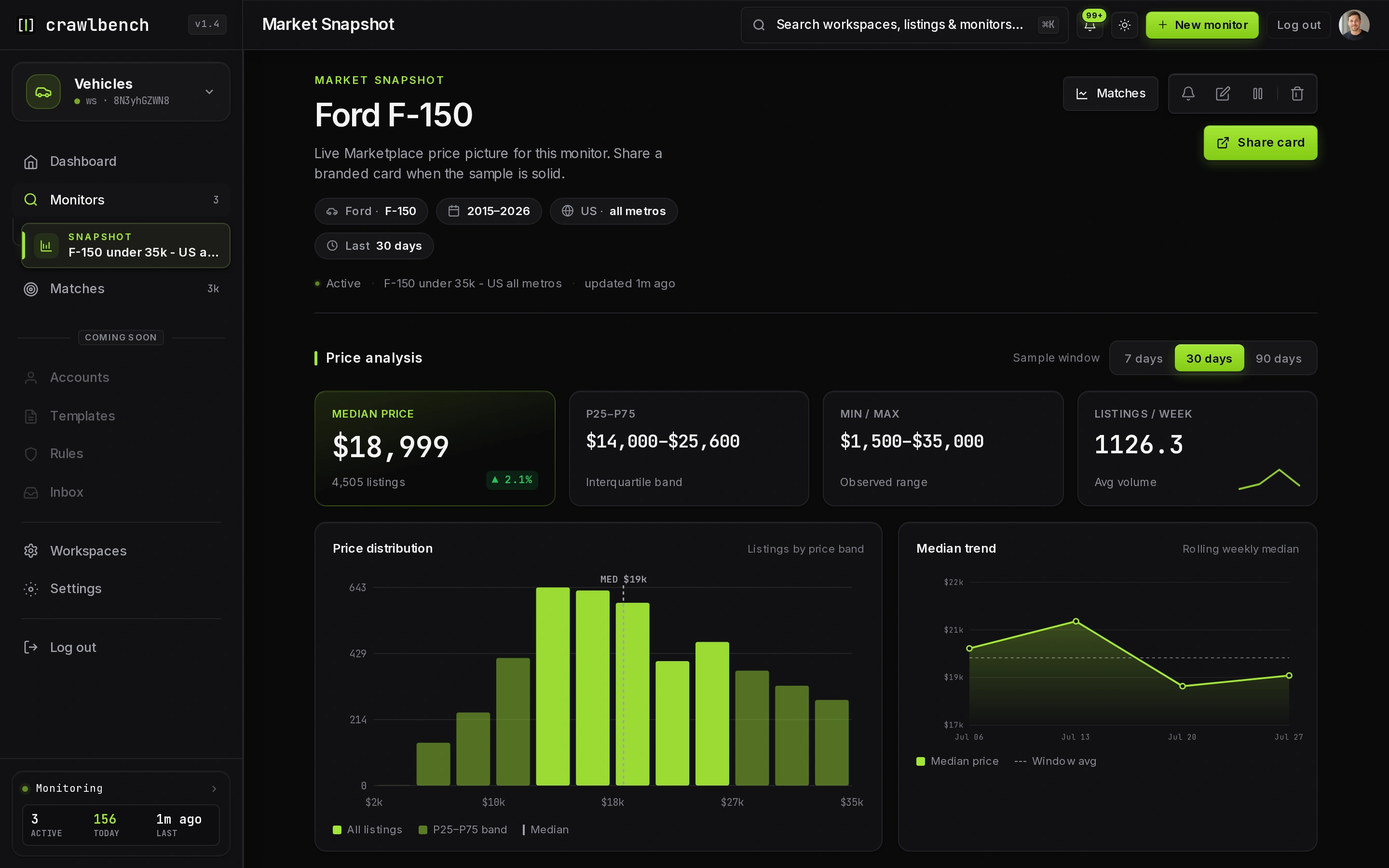
Drill into a monitor for Market Snapshot
Open a monitor to see deeper context: filters summary, recent matches, and Market Snapshot style signals when available. Use that page when you want comps, not when you only need to message a seller.
A 30-second dashboard ritual
- Scan every card for coverage language
- Open any monitor with new matches
- Triage the match queue (next guide)
- Leave filter edits for a weekly review, not every quiet hour