Guides
How to review listings in under two minutes
Read why each listing passed, hide what you would never buy, then message the seller on Facebook or save it for later.
Guides
Use coverage, trends and your searches on Home to know whether your team is catching listings or needs to act.
The dashboard answers: are my monitors catching Marketplace inventory? Scan coverage, then match volume, then open the monitor that needs triage.
Ignore infrastructure labels. Customer views talk about coverage and catching up, not timeouts or rate limits.
After sign-in, Dashboard is the home desk. Each card is a monitor with coverage, recent matches, and a path into the queue.
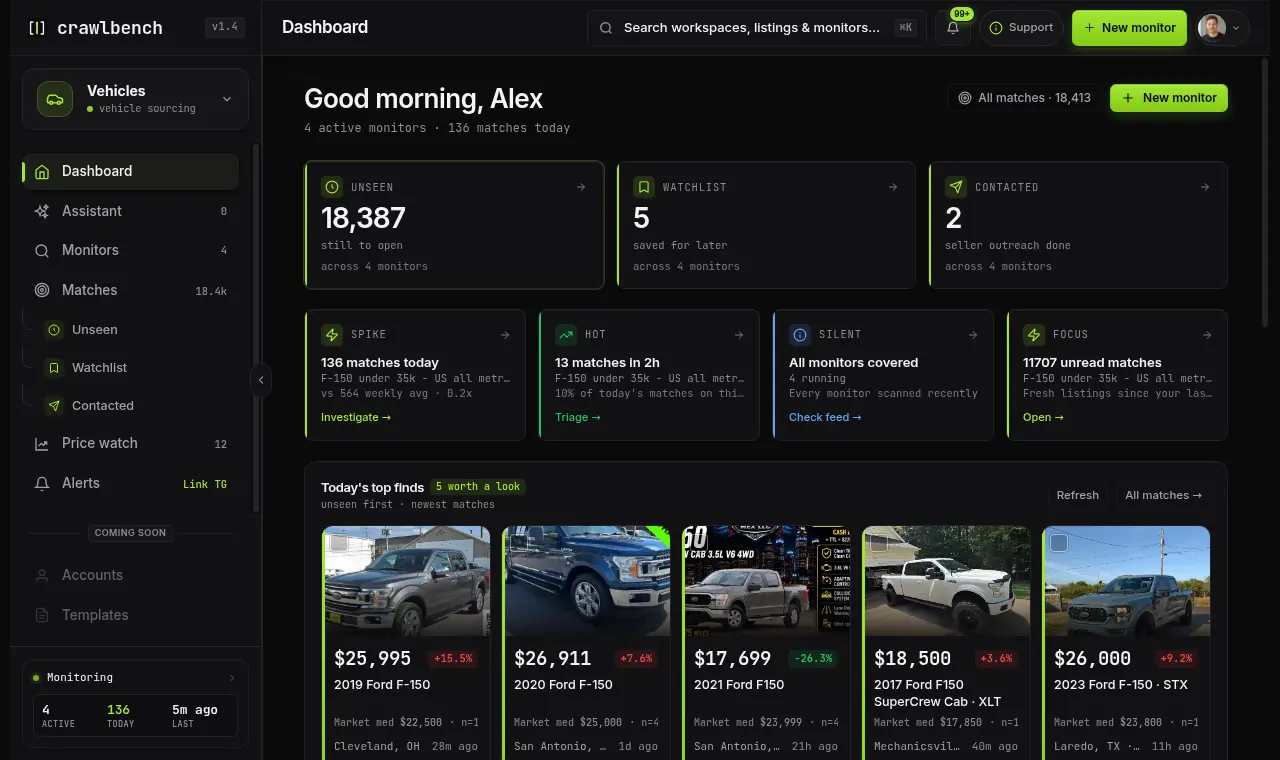
Coverage compares recent successful check waves to your plan's scan interval. Healthy means checks are landing. Catching up means the platform is behind and you should not panic-edit filters.
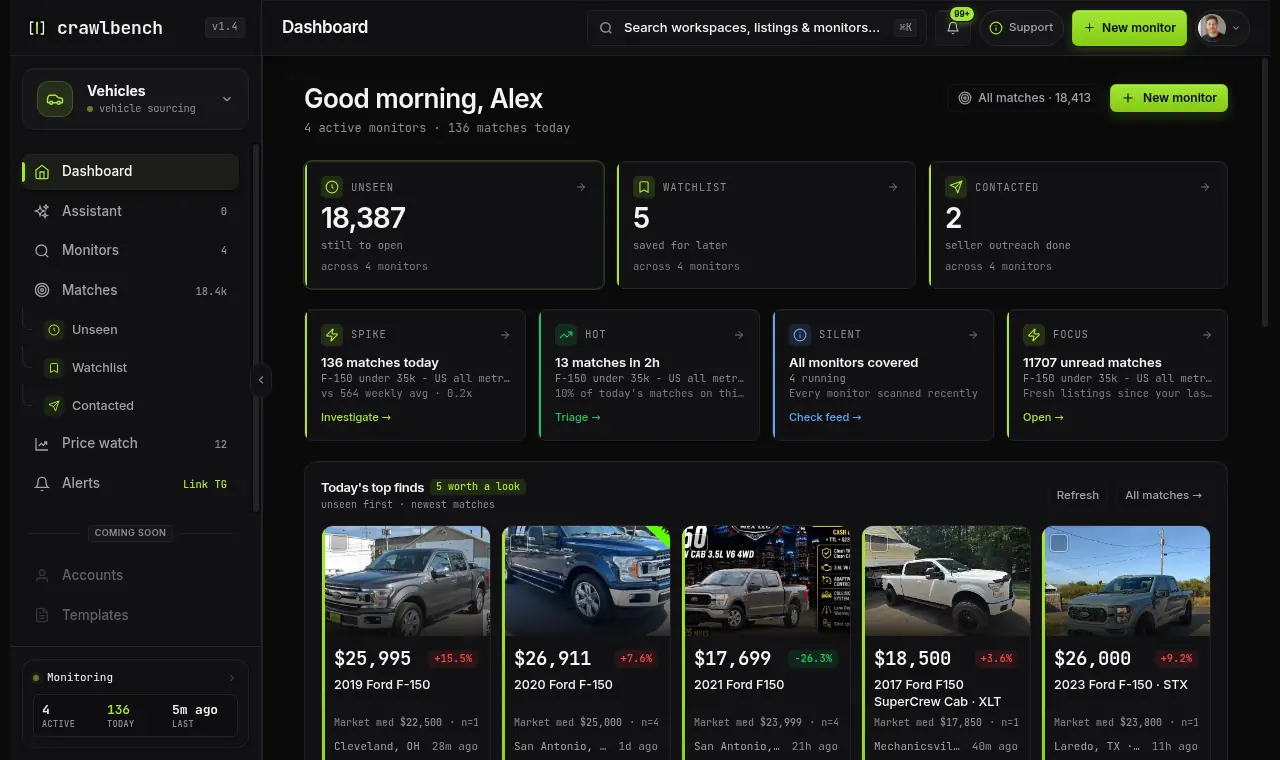
If coverage stays unhealthy while filters are unchanged, check plan fetch caps and city load before you rewrite the buy box.
The short trend on a card is about how many matches you saw recently. Flat or down can mean a quiet market. It is not a red failure state by itself.
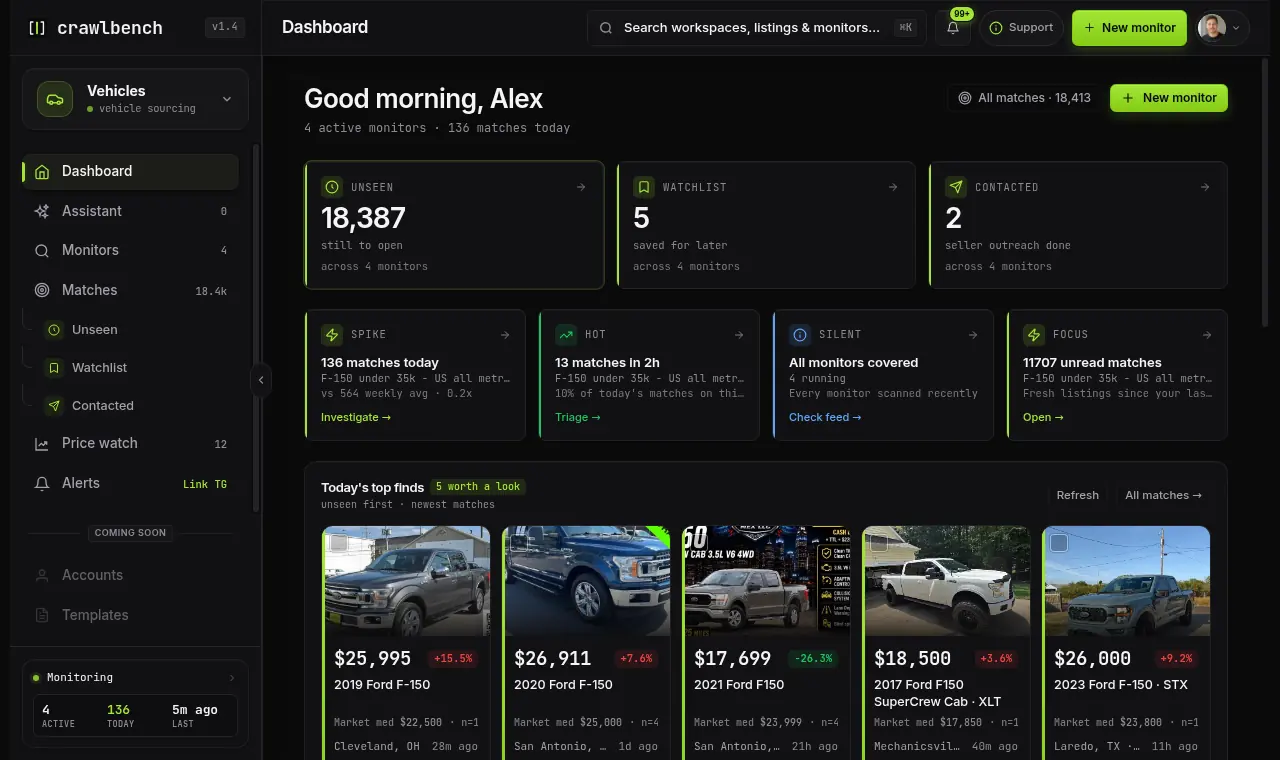
Open a monitor for Market Snapshot when you want Facebook asking-price comps for that buy box: median, bands, and volume from listings Crawlbench has seen. Use Matches when you only need to message a seller. Snapshot is not sold-comp profit AI; it is the comps / assessment surface for the monitored market.
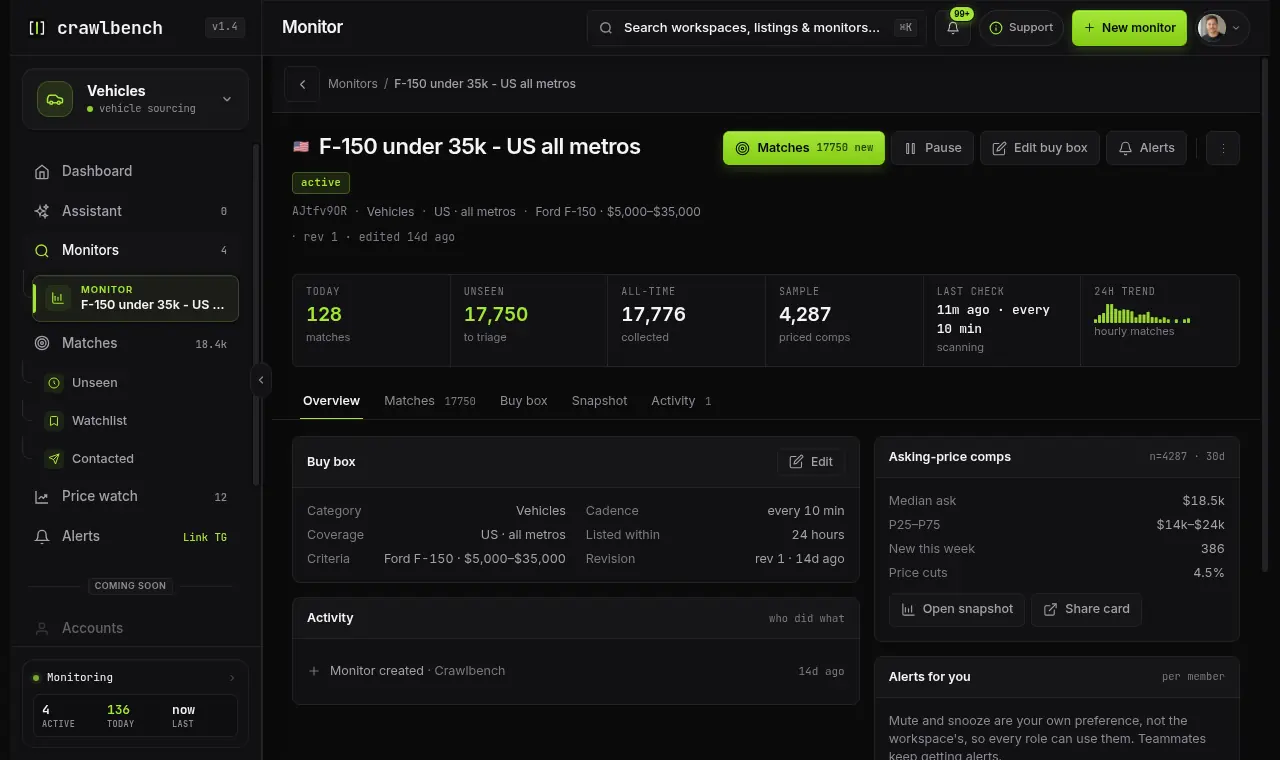
Dashboard signal cards (Spike, Hot, Silent, Focus) are triage attention, not profit scoring. For price assessment, open Snapshot on the monitor.
Guides
Read why each listing passed, hide what you would never buy, then message the seller on Facebook or save it for later.
Guides
Save Facebook Marketplace listings to follow their price. Set a target, compare with the usual price, and get an alert when the seller cuts.
Guides
Link the Crawlbench Telegram bot on Alerts and get new listings in one chat, while you message sellers yourself.
Crawlbench compares each new listing with similar ones nearby and alerts you when a good one appears. Your first search goes live at signup.
Free for 24 hours. No credit card.